 COME
COMECOME Website Questions or Product Support: When No File Appears
Send the right description to the service responsible for the affected page, device control or account record. You selected a COME app-page button but cannot find a new download in the browser.
Identify the layer that failed
Start with the last successful stage. A public article that cannot load, an Android installer error, a product page that stays blank and an account record that looks wrong belong to different layers. Describing them all as a download problem makes it harder to choose a useful next step.
Name the exact page or control and the action you attempted. For a device question, keep the model and Android version. For a product screen, keep the screen name, time and exact message. For a public link, keep the starting and final public addresses. These details narrow the task without requiring passwords or payment credentials.
Use a route appropriate to the record
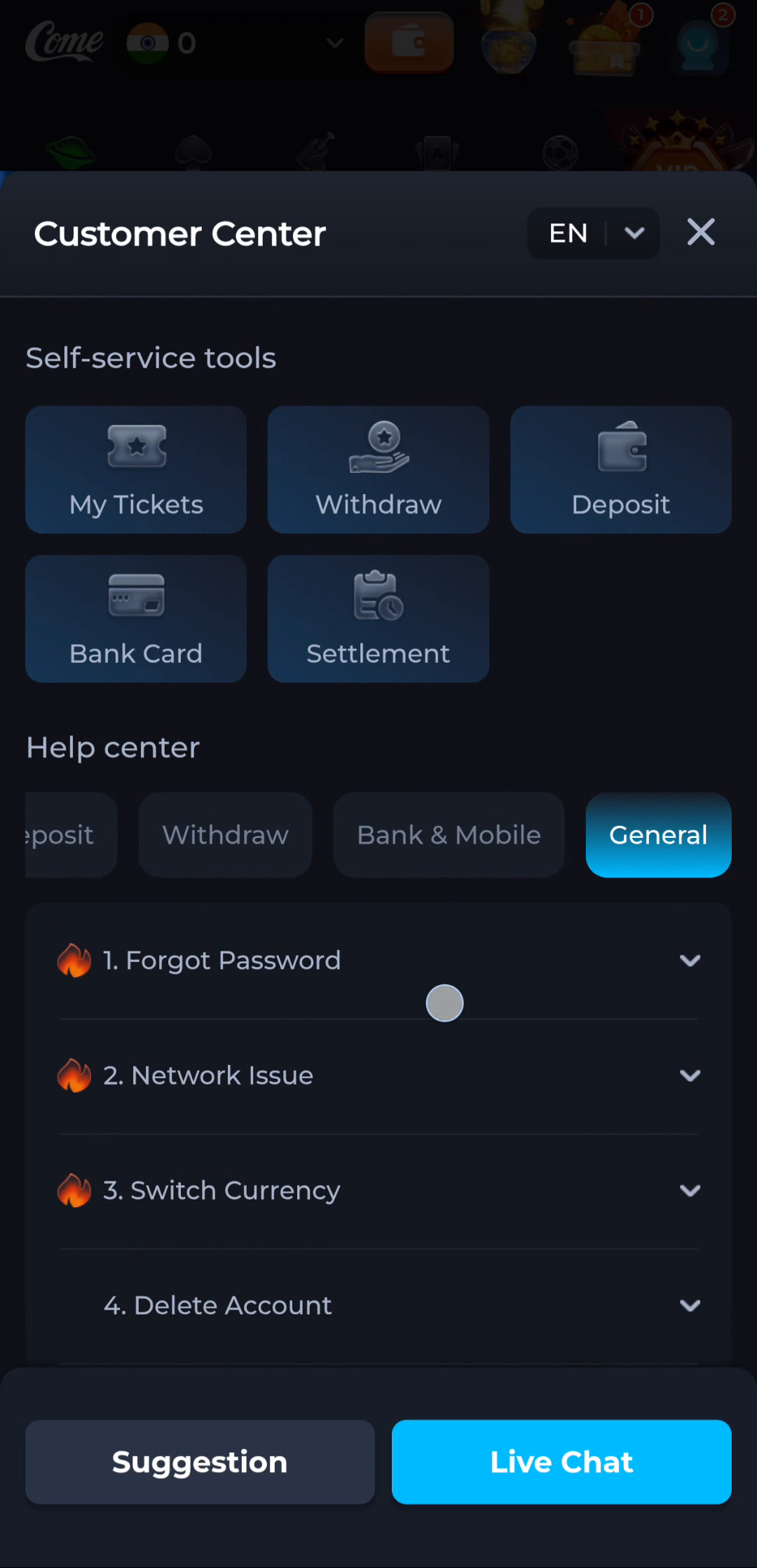
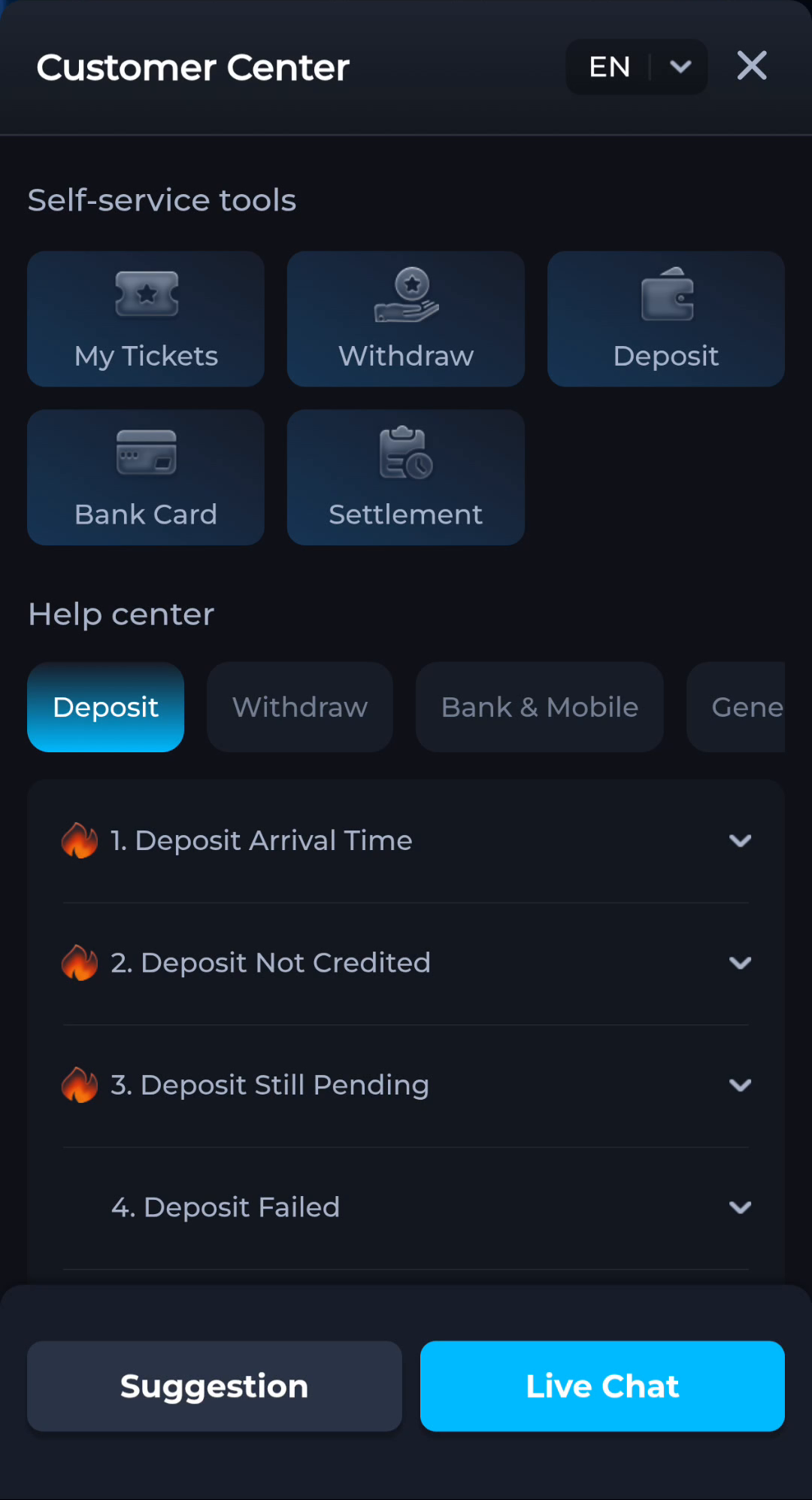
The COME interface shown here includes Contact CS and Customer Center. The latter separates Help center topics and self-service tools. Choose the relevant category in the product you actually use. A website that explains these controls does not thereby gain access to your account or the ability to reverse a transaction.
For Android menu differences or device-level policies, use the manufacturer's guidance for the precise model. For a release or account question, use the product's appropriate help. Do not infer a support phone number from a similar brand name in search results, and do not assume an unrelated directory has authority over the account.
Write a concise, useful problem description
Describe what you expected, what happened and the last action before it happened. Include an exact error rather than a broad conclusion such as 'fake app' or 'server down'. If you made one controlled comparison, state what stayed the same and what changed. A test on another connection can be useful, but it does not confirm a cause by itself.
For a screenshot, show the relevant screen and message while removing private details that are unnecessary for the question. Never publish passwords, OTPs, payment PINs or full card information. Use a genuine private support route when the relevant service needs an account identifier; do not place it in a public comment simply because the interface displays one.
Preserve useful state while waiting
Keep the working installation and the original error context where possible. Clearing app data, uninstalling or repeatedly submitting an account action can destroy information or create another problem. A pending action should be checked through its appropriate record rather than repeated merely to test responsiveness.
The task is complete when the description identifies the responsible layer and the actual issue clearly enough for the relevant service to investigate. Acknowledgment of a message is not proof that the issue is resolved. Confirm the intended result separately, without turning support contact into a claim about response times or outcomes.
Apply this check to your visit
You selected a COME app-page button but cannot find a new download in the browser.
First confirm whether the button opened an HTML product page. If it did, the navigation completed and the file-transfer task has not yet begun. Read the destination's actual Android option and browser download state. Repeating the original page-opening button cannot establish that a package was saved.
The checkpoint for this guide is specific: send the right description to the service responsible for the affected page, device control or account record.
Questions about this task
Can this information site recover my product account?
Its pages explain tasks; account recovery belongs to the product service and its actual support route.
What should I include before asking for help?
The relevant screen, exact message, task stage and necessary device details, with private information removed from public material.
A related next step
Identify the surface you opened and choose the correct route for navigation, installation, updates and account access. You selected a COME app-page button but cannot find a new download in the browser.